floriang0001
February 24, 2022
Solved

Where do I set the time period how long sucessful process instances are kept in the monitoring section?

  • February 24, 2022
  • 7 replies
  • 0 views

I probably simply do not know the correct search terms for that issue.

At the moment, on my on-premise installation, I can see completed processes for around 48h, but we would love to move that up to 168h. Can I do that via the Admin Console? Or do I have to adjust some config file? In any case: Where do I do that?

Best answer by mikes0011

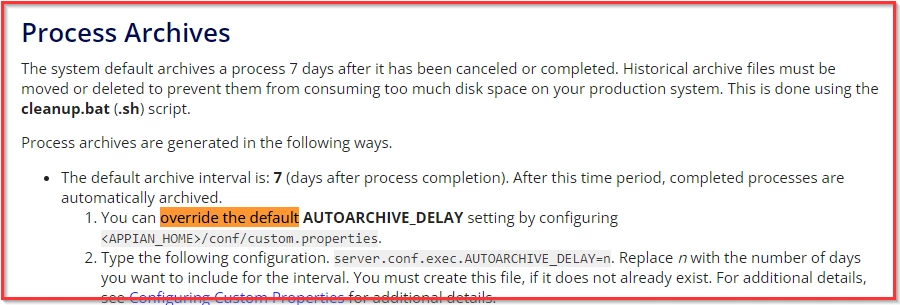
The "system default" value is set in some system config file which I would've thought would be one of the standard ones (like custom.properties) though I haven't touched these in forever.  Any chance your question is answered here? https://docs.appian.com/suite/help/21.4/Managing_Process_Archives.html

Edit to add: this link appears to contain the exact answer: https://docs.appian.com/suite/help/21.4/Data_Maintenance.html

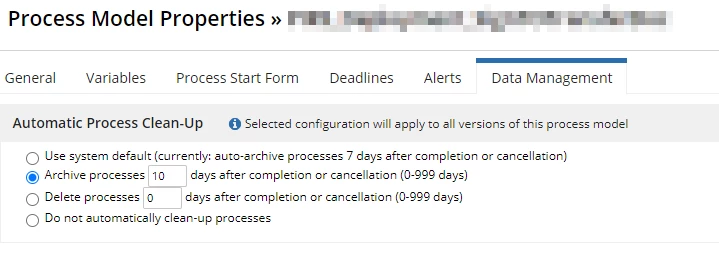
Also just to note, each process model can be set independently, though sadly each process model's value must be hardcoded for some reason.

7 replies

peter.lewis
Employee
February 24, 2022

I think what you're looking for is the Data Management available in the process model: docs.appian.com/.../process-model-object.html

mikes0011
Brainy
February 24, 2022

It sounded to me as if he was asking where you set the "system default auto-archive processes after __ days" value, though I could just be projecting there.

peter.lewis
Employee
February 24, 2022

Ah yeah I think you're correct [emoticon:c4563cd7d5574777a71c318021cbbcc8]. You'll also have to confirm that the processes are actually using the default archive policy though.

mikes0011
mikes0011Answer
Brainy
February 24, 2022

The "system default" value is set in some system config file which I would've thought would be one of the standard ones (like custom.properties) though I haven't touched these in forever.  Any chance your question is answered here? https://docs.appian.com/suite/help/21.4/Managing_Process_Archives.html

Edit to add: this link appears to contain the exact answer: https://docs.appian.com/suite/help/21.4/Data_Maintenance.html

Also just to note, each process model can be set independently, though sadly each process model's value must be hardcoded for some reason.

floriang0001
February 24, 2022

To summarize, I have to proceed as follows, right?

  1. Stop the Tomcat Application Server
  2. Stop the Search Server
  3. Stop the Data Server
  4. Stop the Service Manager
  5. Edit the property AUTOARCHIVE_DELAY within APPIAN_HOME/conf/custom.properties
  6. Start the Service Manager
  7. Start the Data Server
  8. Start the Search Server
  9. Start the Tomcat Application Server
mikes0011
Brainy
February 24, 2022

I'm out of date on how to stop / restart the engines for a local install, but assuming your steps 1-4 and 6-9 are the correct steps and ordering, then this sounds good to go ;-)

stewart.burchell
February 28, 2022

All of the other responses address your actual question, whereas I want to challenge the underlying thinking here. Why do you want to increase the amount of time a successfully complete process instance remains in memory? Given that an application server has a limited amount of memory the objective should be to try and remove completed instances from memory as soon as possible. Processes that are still in flight or have problems are not candidates to be removed and it is right and proper these remain until they are successfully completed.

If your objective is to provide some means of introspection as to what has happened then a database-based audit trail will be a better option long-term as the data can be kept for a much longer period without affecting the performance or scalability of your application.

What is your use case for wanting to extend the period of time completed instances reside in memory?