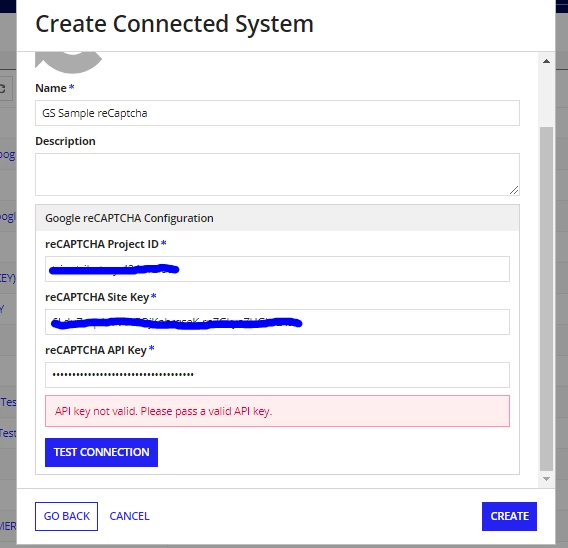
My favourite AI told me this:
Certainly! When working with reCAPTCHA Enterprise, the process of obtaining the necessary credentials can be a bit different compared to the standard reCAPTCHA. Here’s a step-by-step guide to help you find the required keys:
### Step-by-Step Guide to Obtain reCAPTCHA Enterprise Credentials
1. **Enable reCAPTCHA Enterprise API:**
- Go to the [Google Cloud Console](console.cloud.google.com/).
- Select your project or create a new one.
- Navigate to the **API & Services** section.
- Click on **Library** and search for "reCAPTCHA Enterprise".
- Click on **Enable** to enable the API for your project.
2. **Create a reCAPTCHA Site Key:**
- In the Google Cloud Console, go to the **reCAPTCHA Enterprise** section.
- Click on **Create Key**.
- Fill in the required details such as the domain name where you will be using the reCAPTCHA.
- After creating the key, you will get a **Site Key**. This is used in your frontend to render the reCAPTCHA widget.
3. **Obtain the Project ID:**
- The Project ID is available in the **Dashboard** of your Google Cloud Console. It is a unique identifier for your project.
4. **Generate an API Key:**
- Go to the **API & Services** section in the Google Cloud Console.
- Click on **Credentials**.
- Click on **Create Credentials** and select **API Key**.
- An API Key will be generated. This key is used to authenticate your requests to the reCAPTCHA Enterprise API.
### Summary of Keys:
- **Site Key:** Used in your frontend to render the reCAPTCHA widget.
- **API Key:** Used in your backend to authenticate requests to the reCAPTCHA Enterprise API.
- **Project ID:** Unique identifier for your Google Cloud project.