I'm also not exactly clear on the use case either, but unfortunately we can't modify grid layout row highlighting other than shading alternate rows.
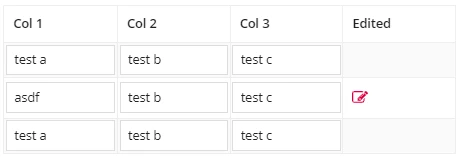
Assuming you want to flag the row when a user edits any of the data points in it, one option is to have an "Edited" type column which alerts that a change has been made by showing something such as a rich text icon.
That can be accomplished by creating a non-refreshing copy of the data as it initially arrives, and comparing it to the data being saved (rule input).
For this example, open a new interface and add a rule input "data" of "Any Type".
Set the Test Input for 'data' to:
{
  a!map(field1: "test a", field2: "test b", field3: "test c"),
  a!map(field1: "test a", field2: "test b", field3: "test c"),
  a!map(field1: "test a", field2: "test b", field3: "test c")
}
And add this in the interface code:
a!localVariables(
  local!data: a!refreshVariable(
    value: ri!data,
    refreshOnReferencedVarChange: false
  ),

  a!columnsLayout(
    columns: {
      a!columnLayout(),
      a!columnLayout(
        contents: {
          a!gridLayout(
            headerCells: a!forEach(items: {"Col 1","Col 2","Col 3","Edited"}, expression: a!gridLayoutHeaderCell(label: fv!item)),
            rows: a!forEach(
              items: ri!data,
              expression: a!gridRowLayout(
                id: fv!index,
                contents: {
                  a!textField(
                    value: fv!item.field1,
                    saveInto: ri!data[fv!index].field1
                  ),
                  a!textField(
                    value: fv!item.field2,
                    saveInto: ri!data[fv!index].field2
                  ),
                  a!textField(
                    value: fv!item.field3,
                    saveInto: ri!data[fv!index].field3
                  ),
                  a!richTextDisplayField(
                    value: a!richTextIcon(
                      showWhen: local!data[fv!index]<>ri!data[fv!index],
                      icon: "edit",
                      size: "MEDIUM",
                      color: "NEGATIVE"
                    )
                  )
                }
              )
            )
          )
        }
      ),
      a!columnLayout()
    }
  )
)
Test, and when you change any if the values, you will see a red icon appear in the "Edited" column: