February 15, 2025
Solved

Generate Dynamic Documents

  • February 15, 2025
  • 4 replies
  • 0 views

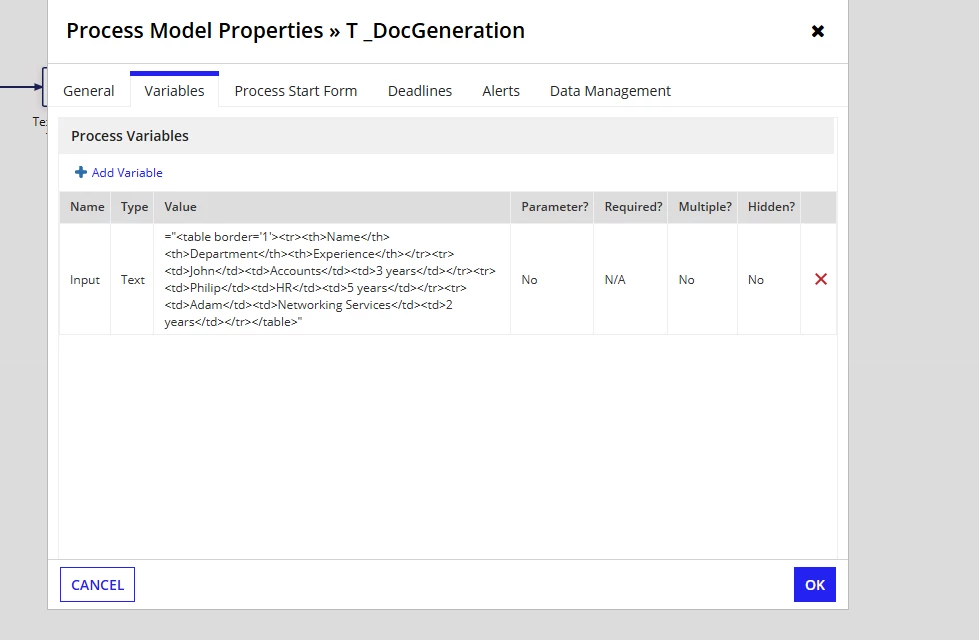
I want to generate a table inside a word doc, below is the config of the smart service "Text Doc from Template": 

Best answer by mikes0011

You can do lots of tricks with the regular Word from Template smart service using the "WordML injection" trick, but you must understand what you're doing first or else the resulting word document will most certainly break and refuse to open.  As Mathieu already mentioned, if you're just trying to create advanced formatting it's probably easier to just learn and use the Advanced Document Templating plug-in.

If you need to proceed with the current technique of using WordML injection - you need to know how to open and analyze the document.xml file at the heart of any generated .docx file (which is really just a zip file containing a predictable file structure and different elements).  You should also understand how replacement keys work - judging by your top screenshot and how the first replacement key has several WordML keywords visibile in it, I'm guessing you haven't sanitized your base template yet to be able to cleanly accept wordML injection.  The hint I'll give here is that every replacement key should show up on the Appian side as plaintext, with no WordML markup visible, otherwise there was a problem.  You probably shouldn't be editing these in Word itself (since it loves to jam random irrelevant extra formatting into the cracks with every edit you make), but directly in the XML file of your template document, to prevent clutter from creeping in.

Additionally I can see the code you're trying to insert isn't WordML but appears to be regular HTML.  Word will have no idea how to handle this.  There are online resources with WordML reference guides which will show you how to guild tables by hand in WordML - or you can do what I did for starters and save a very simple table in a word file, then open the underlying XML file in a text powereditor, and see the structure for yourself (warning, they make no attempt to format it for friendly reading).

Edit: one can find their way to my latest, Appian 21.1 era export of my demo app for it, by following this old comment trail.

4 replies

mathieud0001
February 17, 2025

That Smart Service is to generate a text file.

If you need to generate tables in a Word doc, I would suggest you use the Advanced Document Templating  plugin: https://community.appian.com/b/appmarket/posts/advanced-document-templating?CommentId=6199f022-84b8-49d9-8bfd-15566fdaaf0c

If you are open to generating a PDF, it would probably be easier to generate an HTML doc and then convert it to PDF using the Dynamic Document Generator plugin: community.appian.com/.../dynamic-document-generator

davidj137213
February 18, 2025

Is the document generated correctly if the written text is not html code?

February 28, 2025

Yes wit no html the doc is generated correctly

mikes0011
mikes0011Answer
Brainy
February 28, 2025

You can do lots of tricks with the regular Word from Template smart service using the "WordML injection" trick, but you must understand what you're doing first or else the resulting word document will most certainly break and refuse to open.  As Mathieu already mentioned, if you're just trying to create advanced formatting it's probably easier to just learn and use the Advanced Document Templating plug-in.

If you need to proceed with the current technique of using WordML injection - you need to know how to open and analyze the document.xml file at the heart of any generated .docx file (which is really just a zip file containing a predictable file structure and different elements).  You should also understand how replacement keys work - judging by your top screenshot and how the first replacement key has several WordML keywords visibile in it, I'm guessing you haven't sanitized your base template yet to be able to cleanly accept wordML injection.  The hint I'll give here is that every replacement key should show up on the Appian side as plaintext, with no WordML markup visible, otherwise there was a problem.  You probably shouldn't be editing these in Word itself (since it loves to jam random irrelevant extra formatting into the cracks with every edit you make), but directly in the XML file of your template document, to prevent clutter from creeping in.

Additionally I can see the code you're trying to insert isn't WordML but appears to be regular HTML.  Word will have no idea how to handle this.  There are online resources with WordML reference guides which will show you how to guild tables by hand in WordML - or you can do what I did for starters and save a very simple table in a word file, then open the underlying XML file in a text powereditor, and see the structure for yourself (warning, they make no attempt to format it for friendly reading).

Edit: one can find their way to my latest, Appian 21.1 era export of my demo app for it, by following this old comment trail.