April 29, 2024
Solved

How to export data to excel in a grid with more than 50 columns?

  • April 29, 2024
  • 26 replies
  • 2 views

I am using a read-only grid to show data for reports. I need to export the data to excel but the grid has more than 50 columns. I have already tried default export to excel feature and a!exportDataStoreEntityToExcel() function but none of these worked. 

FYI:

  • Data is in SQL.
  • Appian version is 23.2.
  • Columns cannot be merged or it's count can't be reduced

Is there any way I can export the data to excel?

Best answer by shubhama926776

Hello [mention:b689b5b120934102bf0fe5191d46a837:e9ed411860ed4f2ba0265705b8793d05] ,

I would suggest you to use OOTB of appian to achieve this. We created xlsx file using below approach to create more than 50 columns to be exportable.

Create Web API:
Parse request using  a!fromJson( http!request.body)  and retrieve information to query data for which identifier.
Retrieves data using queryEntity from your database using request identifier.
Encodes the generated Excel data in Base64 format using exportDataSubsetToBase64 function.
Sends the Base64 encoded data as the response body in the HTTP response with appropriate headers.

a!localVariables(
    /*Create Helper CDT of Request Type*/
  local!request: a!fromJson( http!request.body),/*Parse Request Here and cast to helper cdt*/
  local!entities: /*Retrive Data Here from DB using local!request parameters*/
  local!export:exportdatasubsettobase64(
    datasubset:todatasubset(  local!entities),
    fieldLabels:{} /*The labels of header to set in Excel*/,
    fieldNames: {} /*The names of the datasubset fields to add to Excel*/,
  ),
  a!httpResponse(
    statusCode: 200,
    headers: 
      a!httpHeader(name: "Content-Type", value: "application/xlsx"),
   
      body: a!toJson(value: local!export)
  ),
  a!httpResponse(
    statusCode: 400,
    headers: 
    a!httpHeader(name: "Content-Type", value: "application/xlsx"),

    body: {}
  )
)

Create Integration:
Calls the Web API using a POST method.
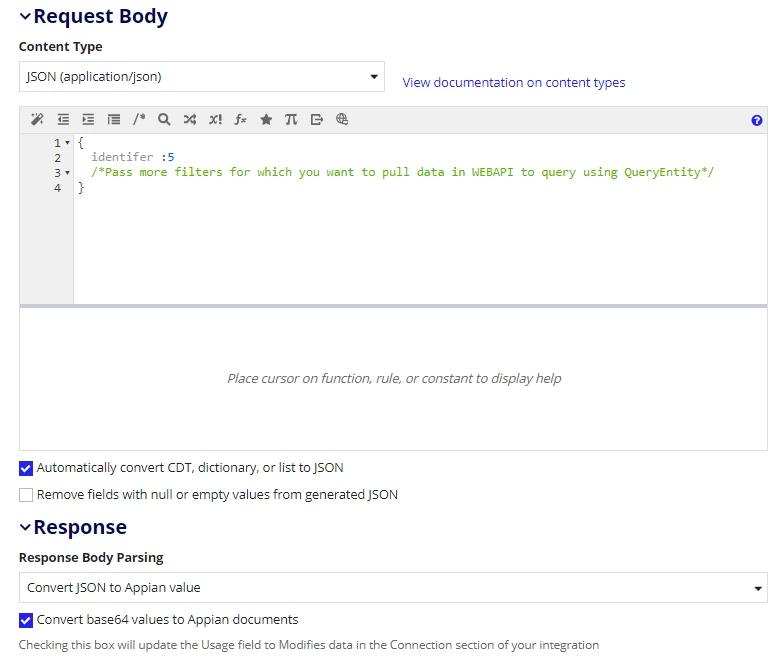
Send request as for which identifier you want data(Create Request).
Parses the JSON response from the Web API.
Extracts the Base64 encoded data from the response body (likely from fv!result.body.base64Document).
Decodes the Base64 data back into its original Excel format.
Saves the decoded Excel data as an Appian document in the specified directory.


Let me know if you have any questions.

26 replies

venkatrea696188
April 29, 2024
a!exportDataStoreEntityToExcel() function but none of these worked. 

Is it throwing any error?? And have you tried Excel tools Plugin , Appian suggests this plugin if you want export more than 50 columns

April 29, 2024

Yes. it says maximum column limit exceeded. 

venkatrea696188
April 29, 2024
shubhama926776
April 29, 2024

Hello [mention:b689b5b120934102bf0fe5191d46a837:e9ed411860ed4f2ba0265705b8793d05] ,

I would suggest you to use OOTB of appian to achieve this. We created xlsx file using below approach to create more than 50 columns to be exportable.

Create Web API:
Parse request using  a!fromJson( http!request.body)  and retrieve information to query data for which identifier.
Retrieves data using queryEntity from your database using request identifier.
Encodes the generated Excel data in Base64 format using exportDataSubsetToBase64 function.
Sends the Base64 encoded data as the response body in the HTTP response with appropriate headers.

a!localVariables(
    /*Create Helper CDT of Request Type*/
  local!request: a!fromJson( http!request.body),/*Parse Request Here and cast to helper cdt*/
  local!entities: /*Retrive Data Here from DB using local!request parameters*/
  local!export:exportdatasubsettobase64(
    datasubset:todatasubset(  local!entities),
    fieldLabels:{} /*The labels of header to set in Excel*/,
    fieldNames: {} /*The names of the datasubset fields to add to Excel*/,
  ),
  a!httpResponse(
    statusCode: 200,
    headers: 
      a!httpHeader(name: "Content-Type", value: "application/xlsx"),
   
      body: a!toJson(value: local!export)
  ),
  a!httpResponse(
    statusCode: 400,
    headers: 
    a!httpHeader(name: "Content-Type", value: "application/xlsx"),

    body: {}
  )
)

Create Integration:
Calls the Web API using a POST method.
Send request as for which identifier you want data(Create Request).
Parses the JSON response from the Web API.
Extracts the Base64 encoded data from the response body (likely from fv!result.body.base64Document).
Decodes the Base64 data back into its original Excel format.
Saves the decoded Excel data as an Appian document in the specified directory.


Let me know if you have any questions.

September 20, 2024

Hi, I have tried to do in the same way. Created a post WebAPI and queried the data and then converted to json.

I created a post integration as well. But when I convert it to Appian value then it throws an error that

"The json text parameter was not valid json. Received:<....."

As of now I have not provided fieldNames and fieldLabels.

Could you please give an example of what to provided in fieldNames and labels. After that will try again.

karthikk538
April 29, 2024

Hi Yashika,

1. The is'nt supported by OOTB plugin.

2. you can try the option provide by shubham below, with webapi, but make sure its less data, else this will crash the app server if the data is too huge, which caused more heap memory usage.

shubhama926776
April 29, 2024

Hello [mention:35656ad056ed4a5a9a8091da482e69e9:e9ed411860ed4f2ba0265705b8793d05] ,

We are using this export since last 2 years which almost export  ~9K rows as a single export. We didn't find any high heap usage and performance issues.

karthikk538
April 29, 2024

ok, 9k is very less, once user tried exporting 150k records with issue in filter, this crashed the app server, so we deommisioned using this approach. it dint cause any problem for less than 30 k records.

@yashika , just check the heap usage while exporting more records and set the threshold according to the best which suites you.

community.appian.com/.../kb-2288-application-server-heap-memory-faq

harshk1671
April 29, 2024

Hi yashikas8334,

If you face heap memory issues as suggested in other replies, then as a workaround you can use following approach.

1. Using 'Export Data Store Entity to Excel' export first 50 columns.

2. Use the above document again in to export the next 50 columns. You can repeat this step until it won't covers all the columns.

3. In the step 2 make sure starting cell should be the (max column from previous output + 1)

4. Also, in step 2 you can export in a new tab each time. Keep a unique identifier among the tabs for business to create a VLOOKUP to navigate from one tab to another.

December 25, 2024

I tried this approach, but it is creating new version of same document instead of updating, and as result i am getting columns after 50 columns only. and first 50 columns are blank.

February 4, 2025

Did you find any resolution as we are also facing issue to extract large volume and 200 columns?